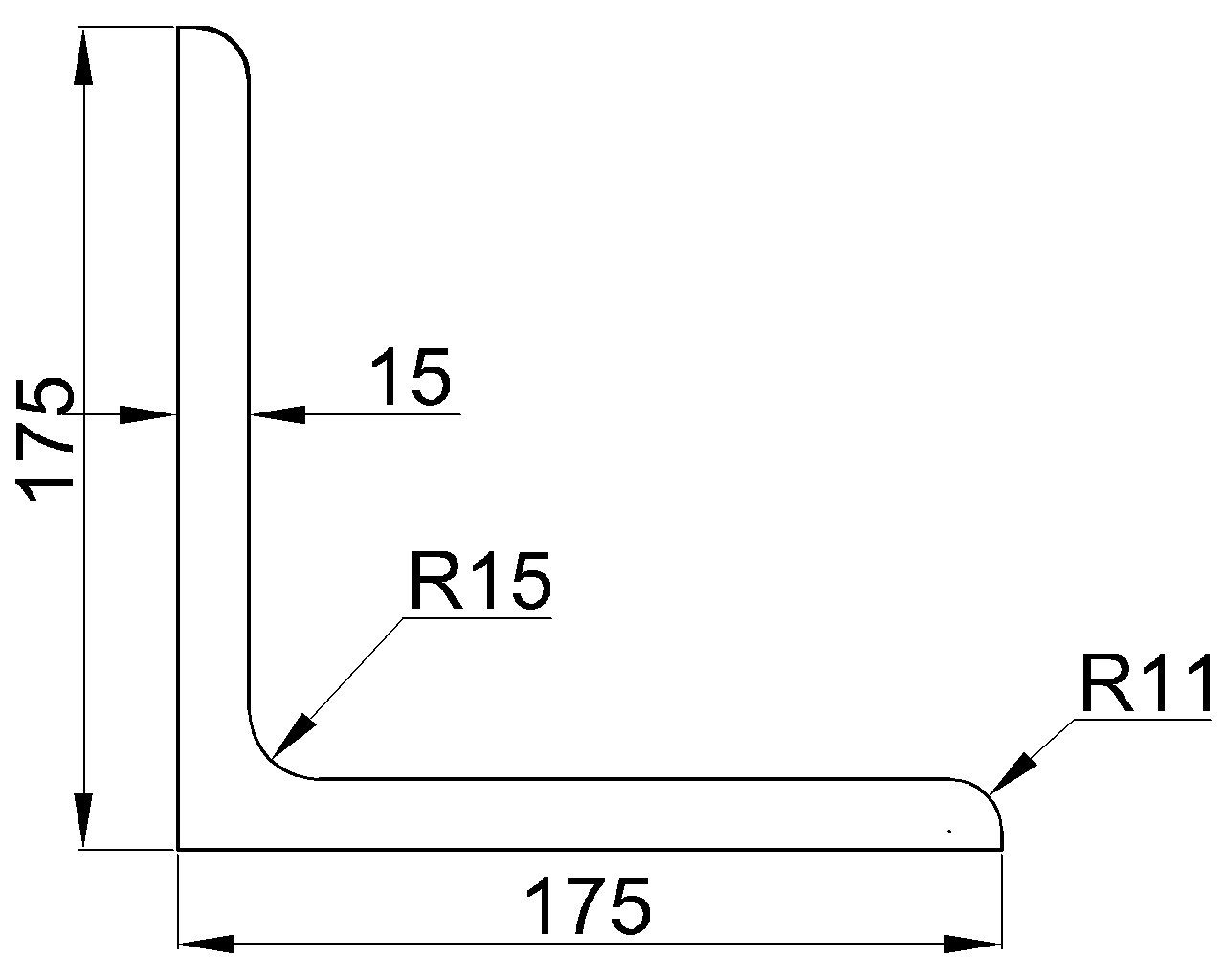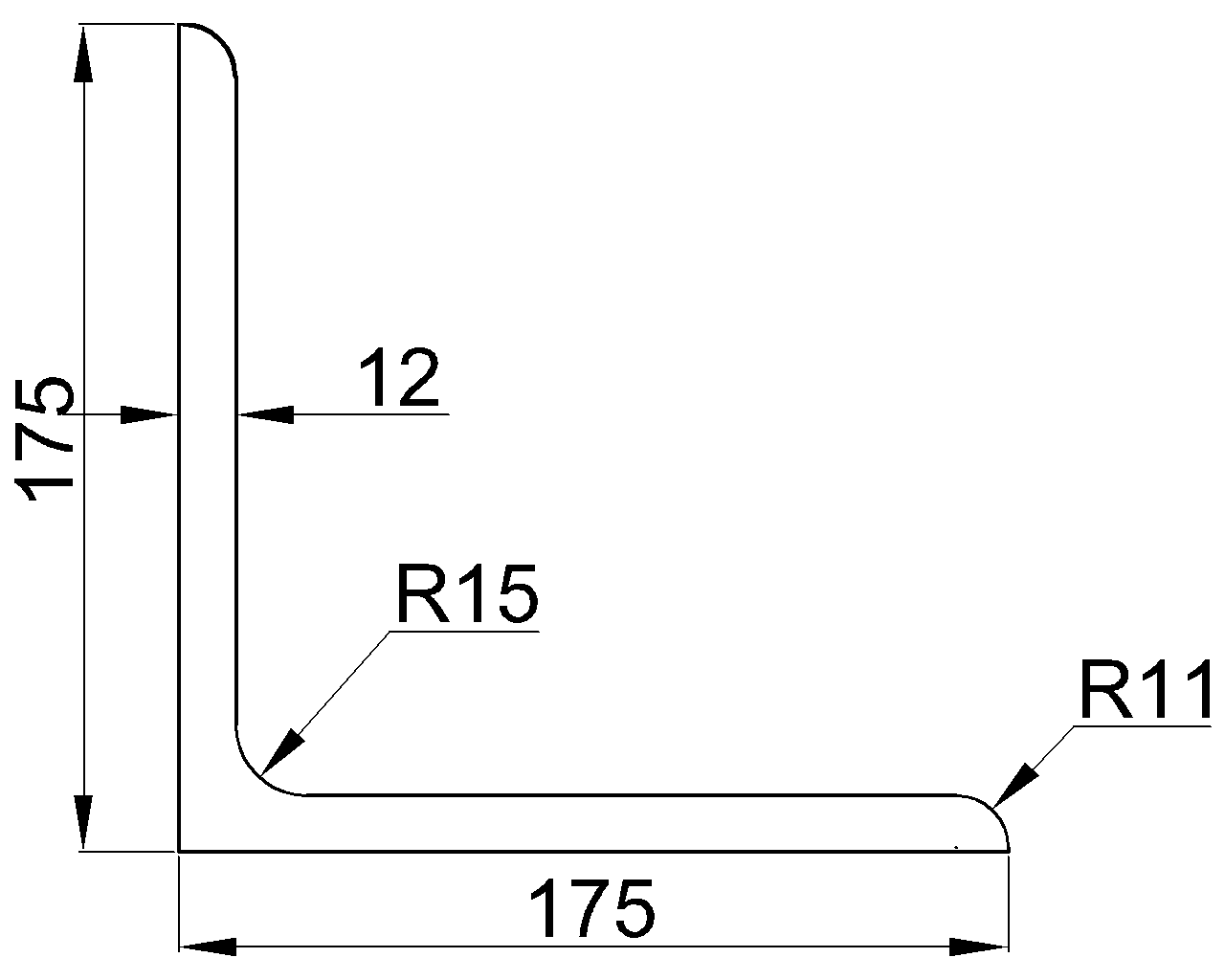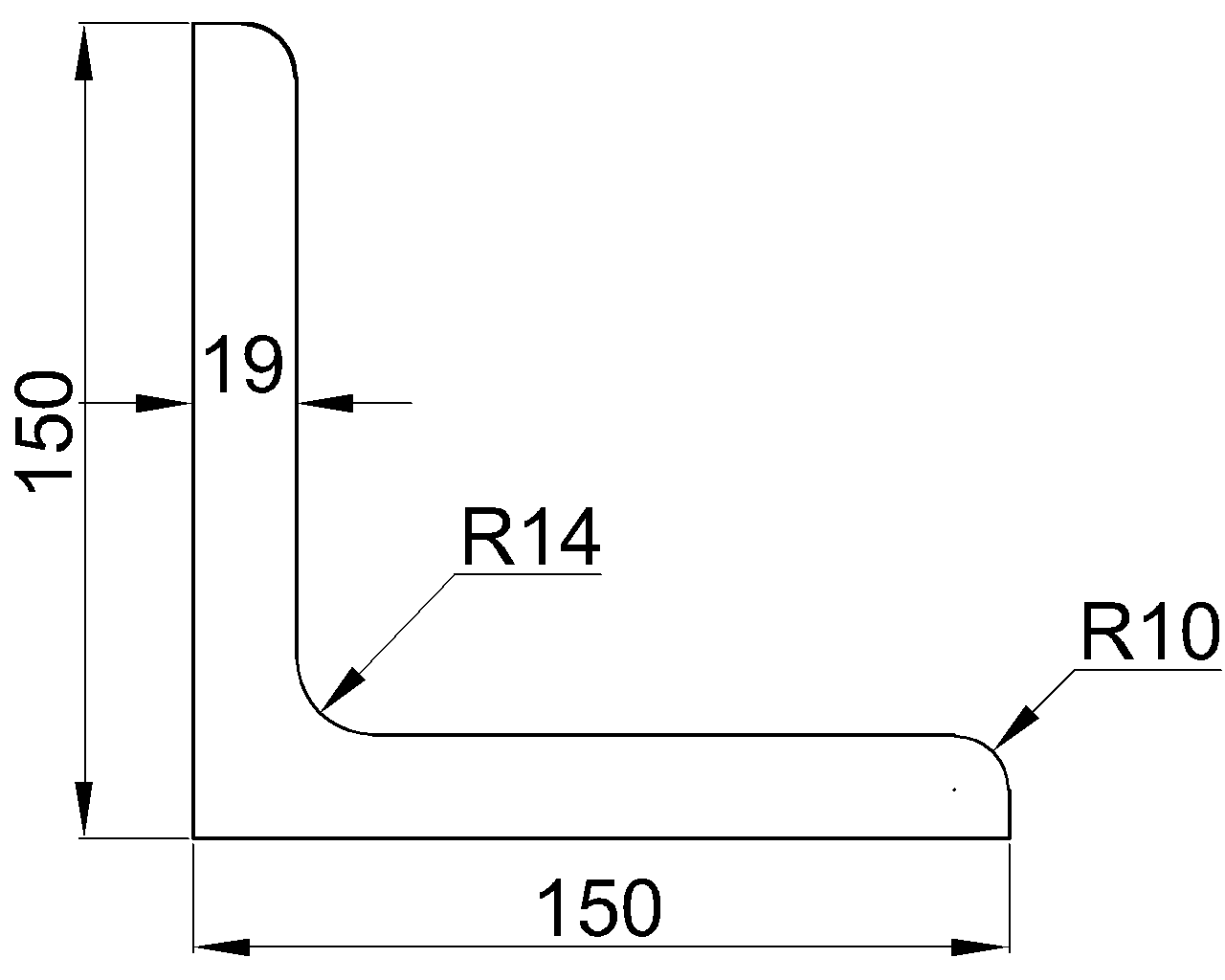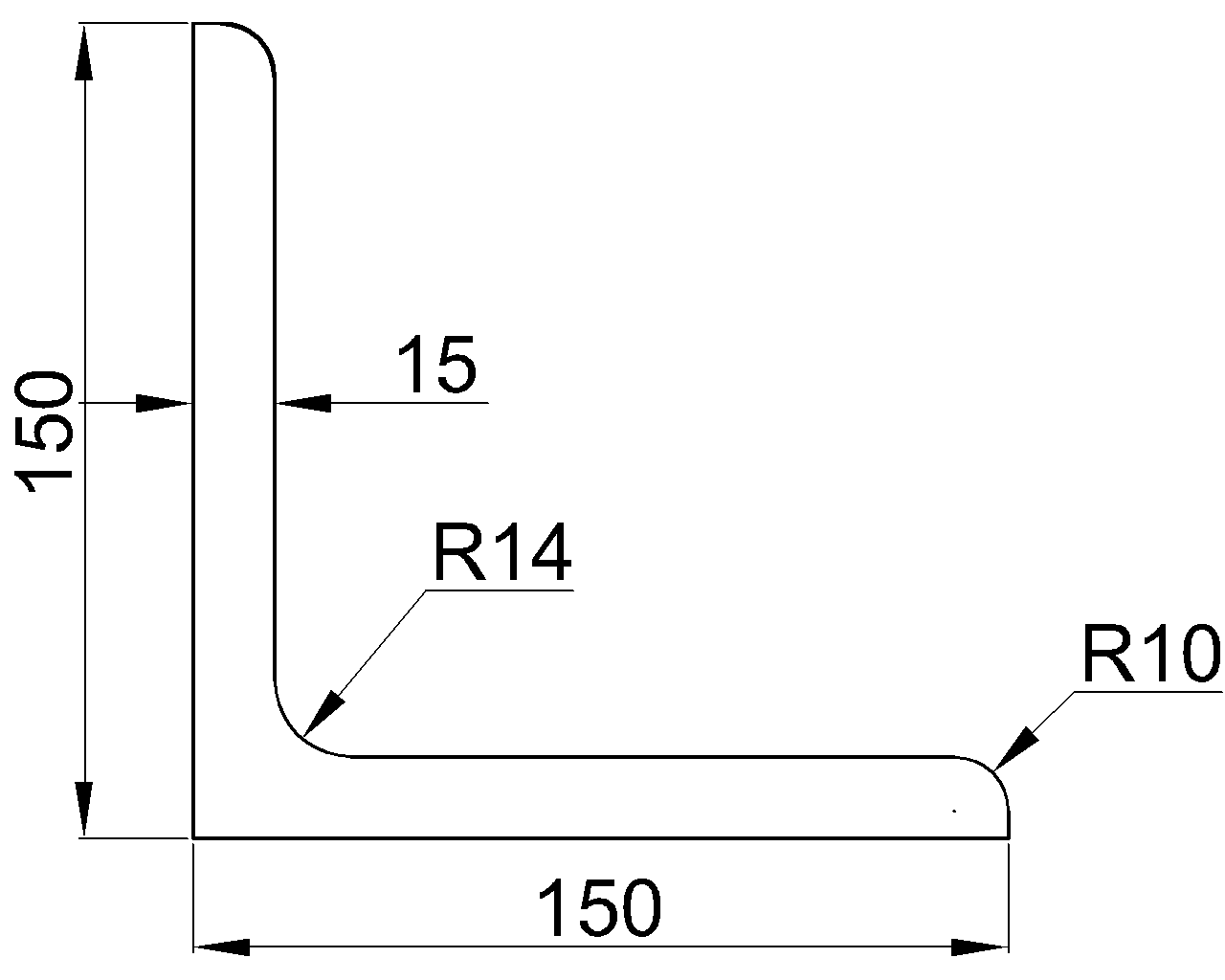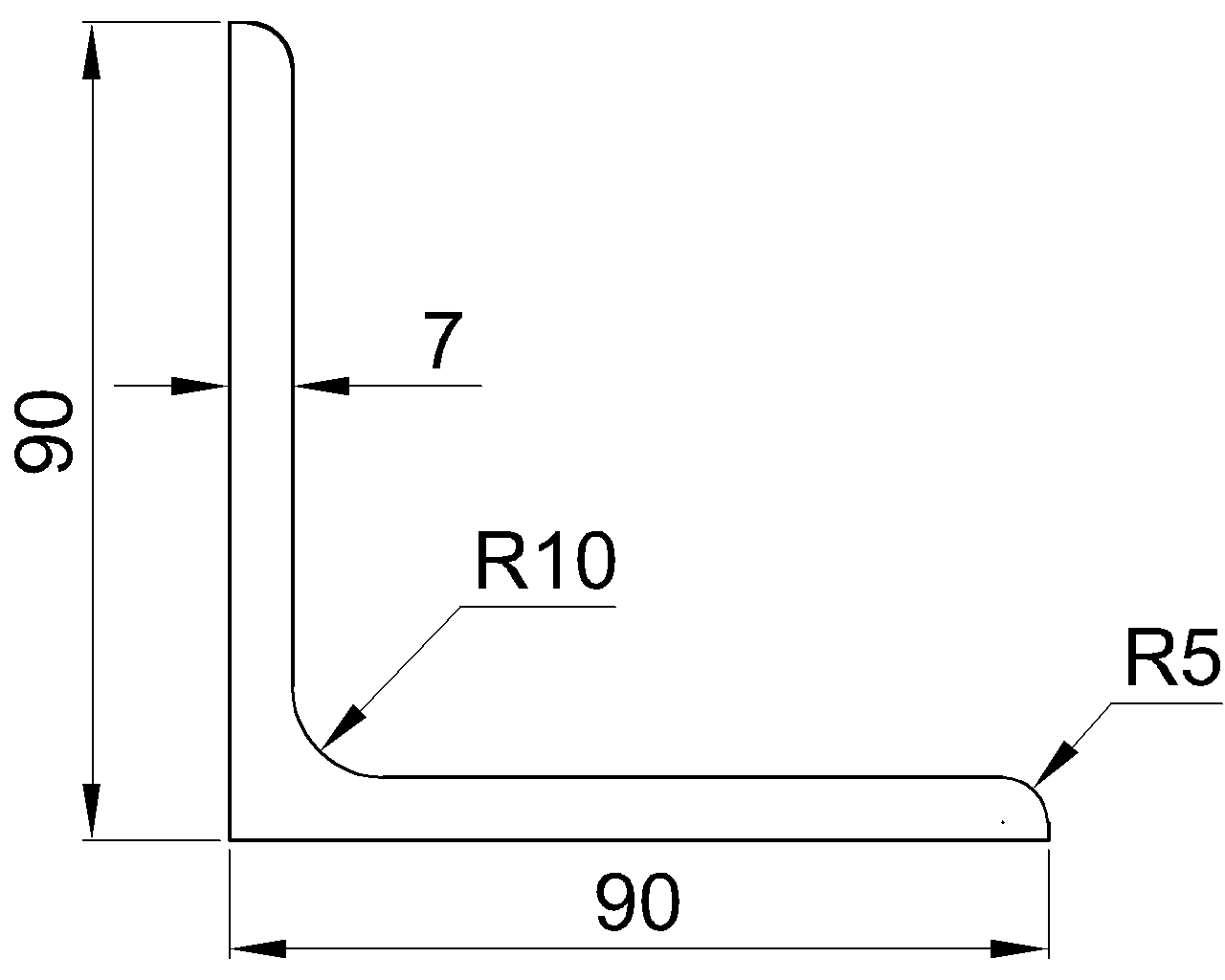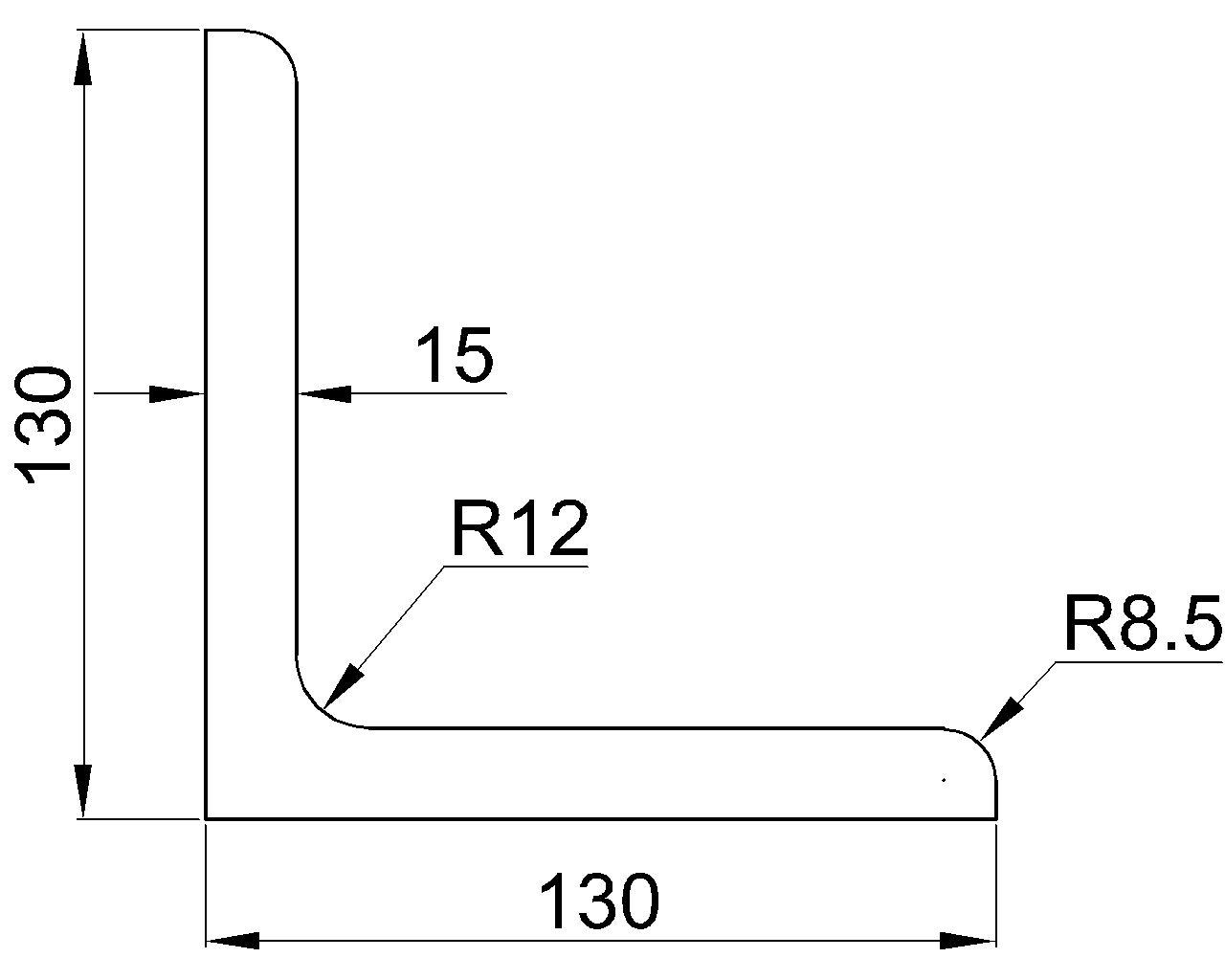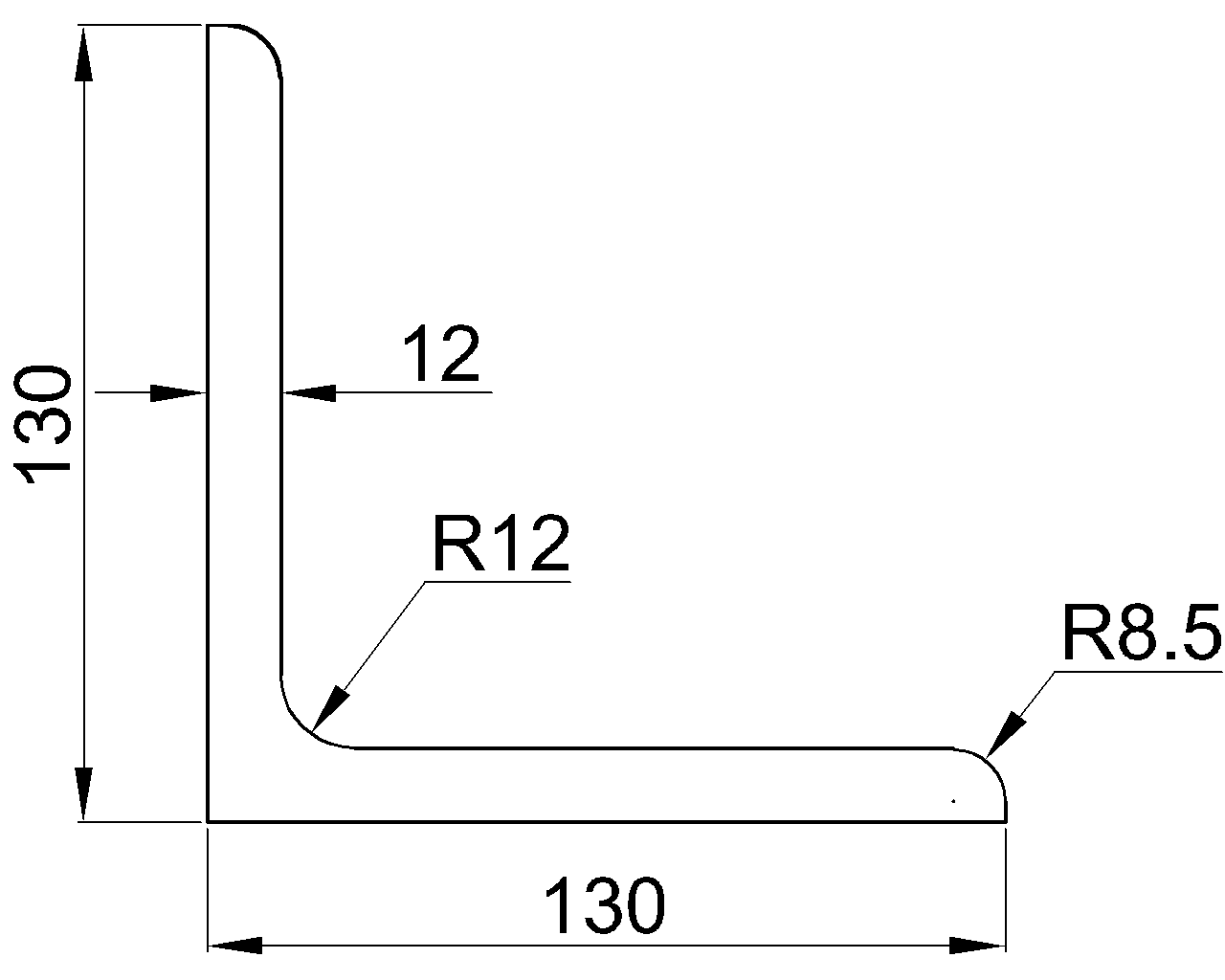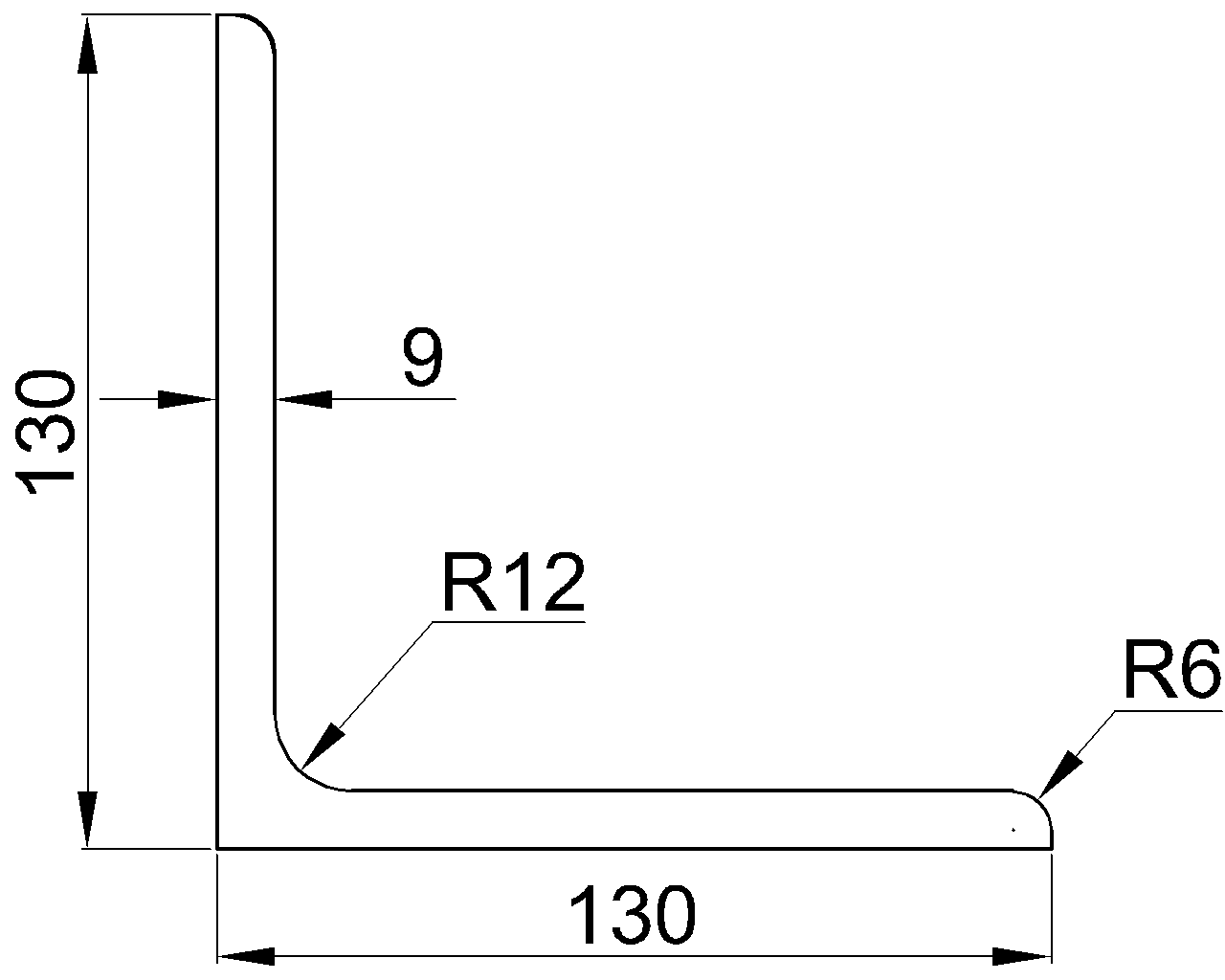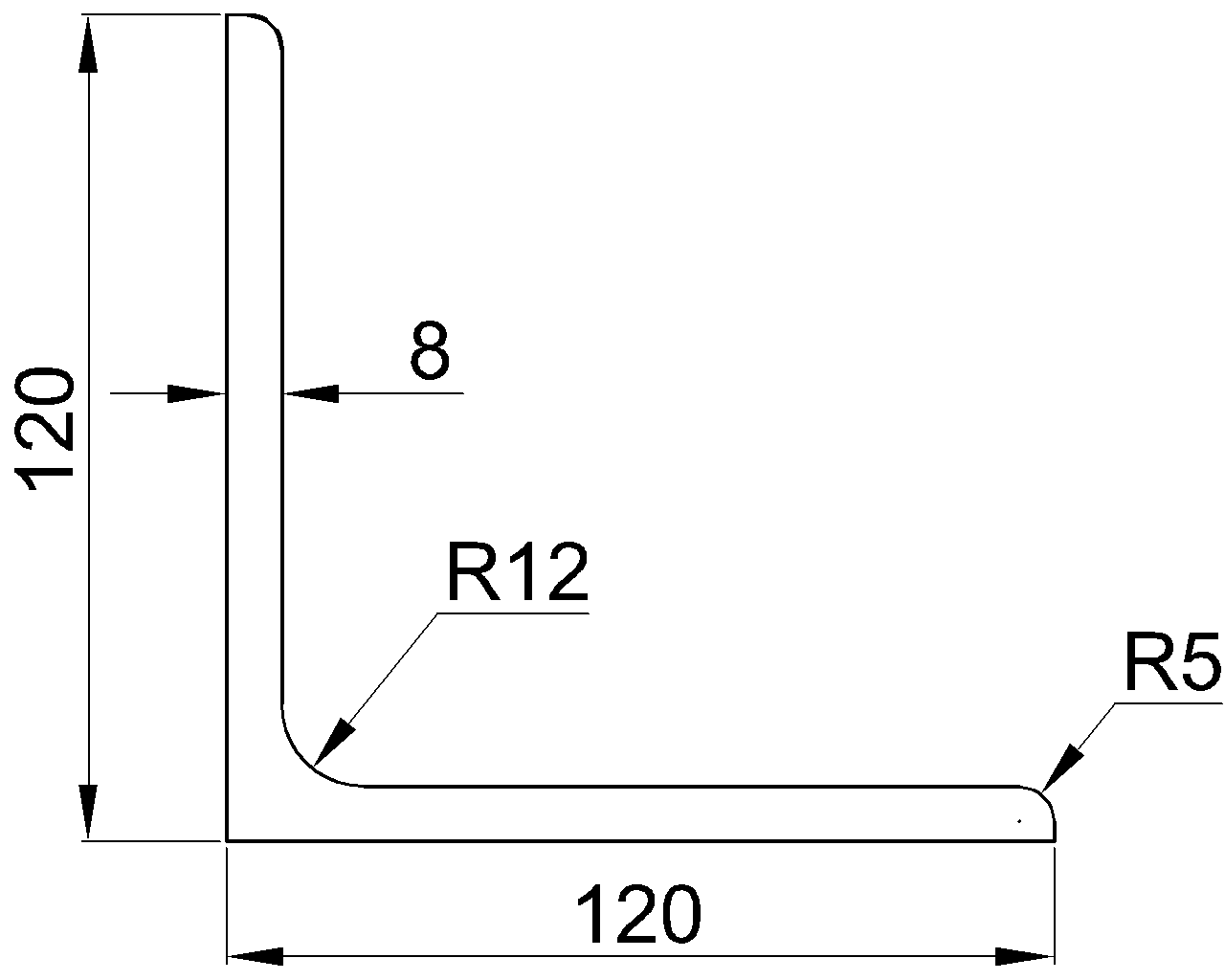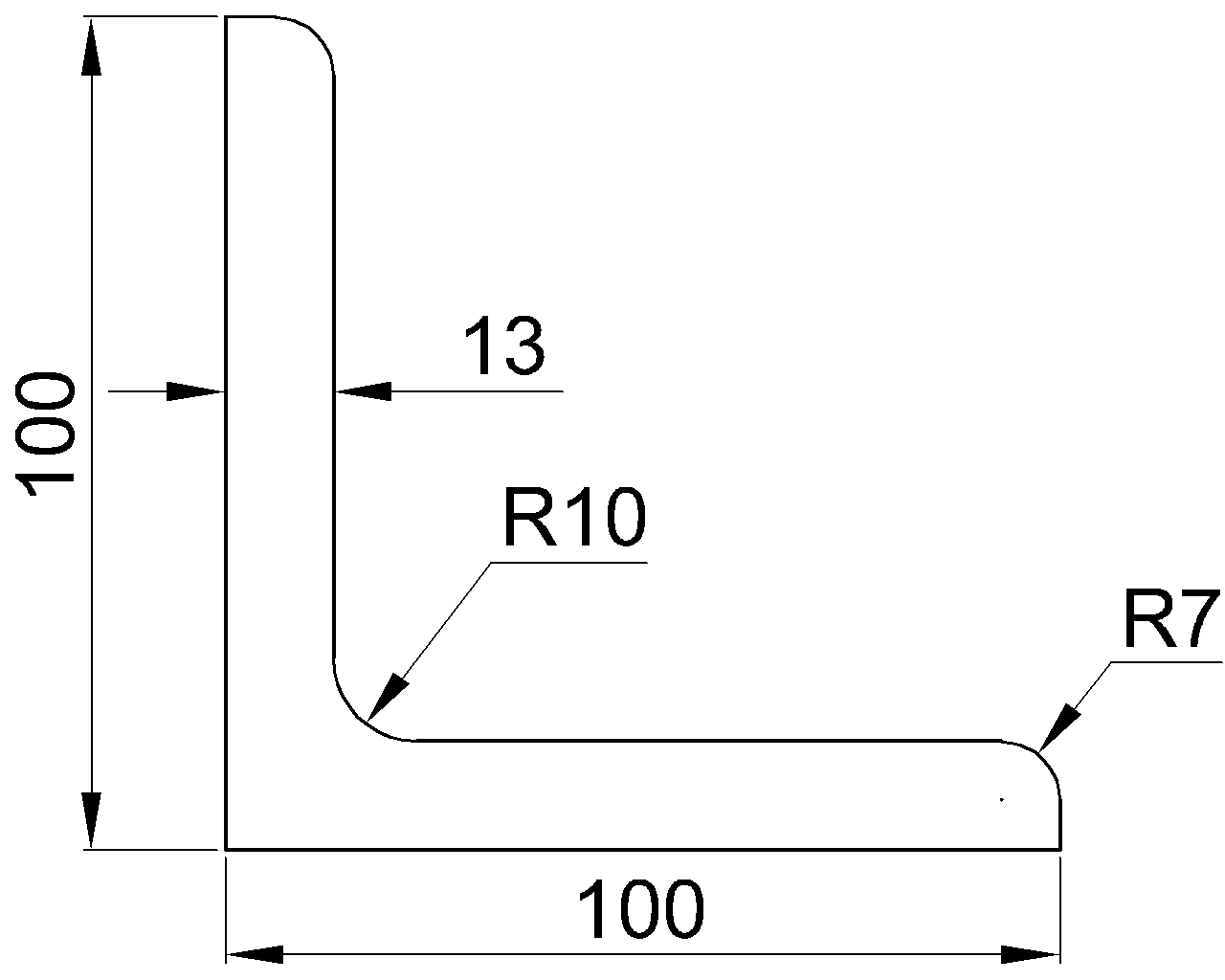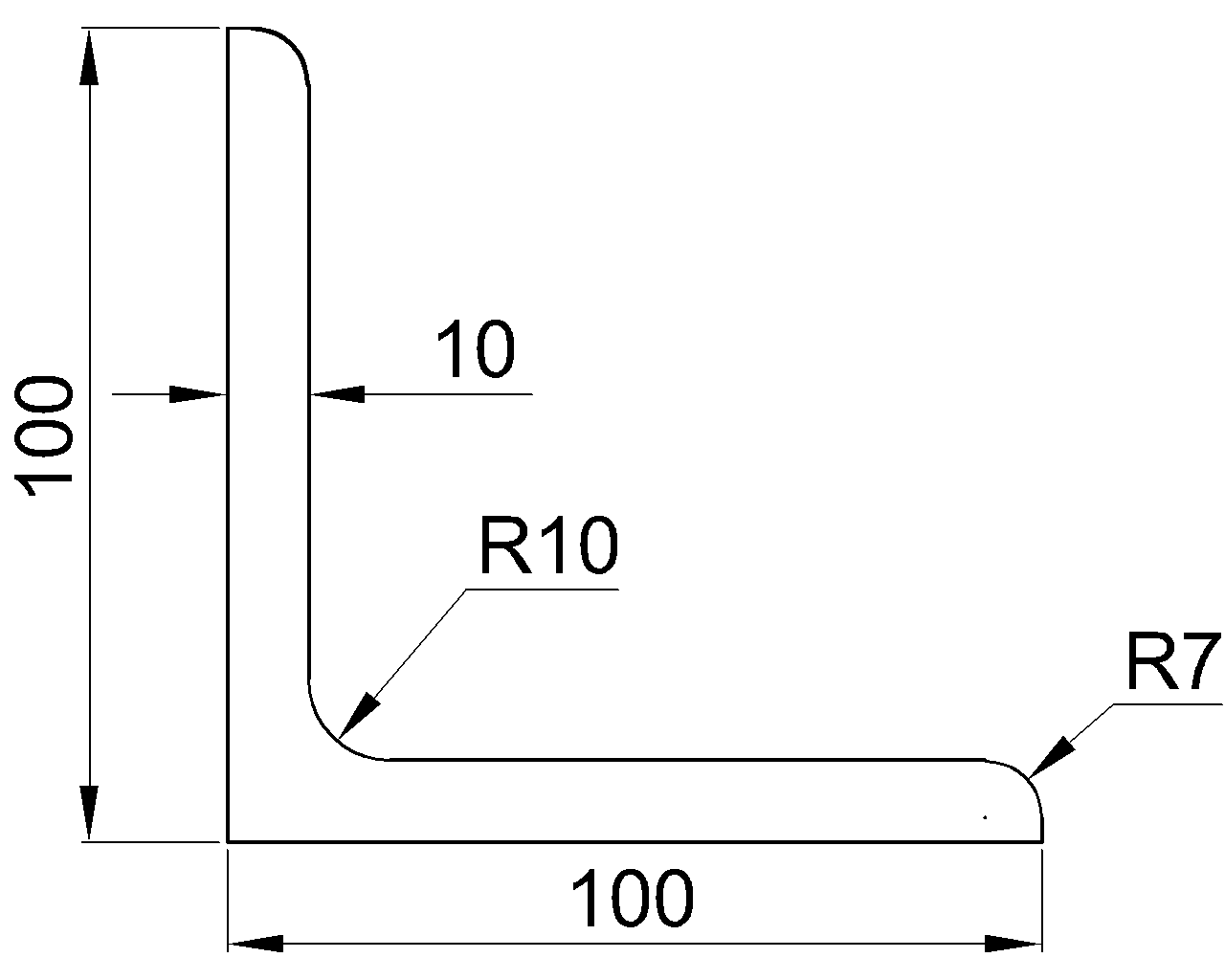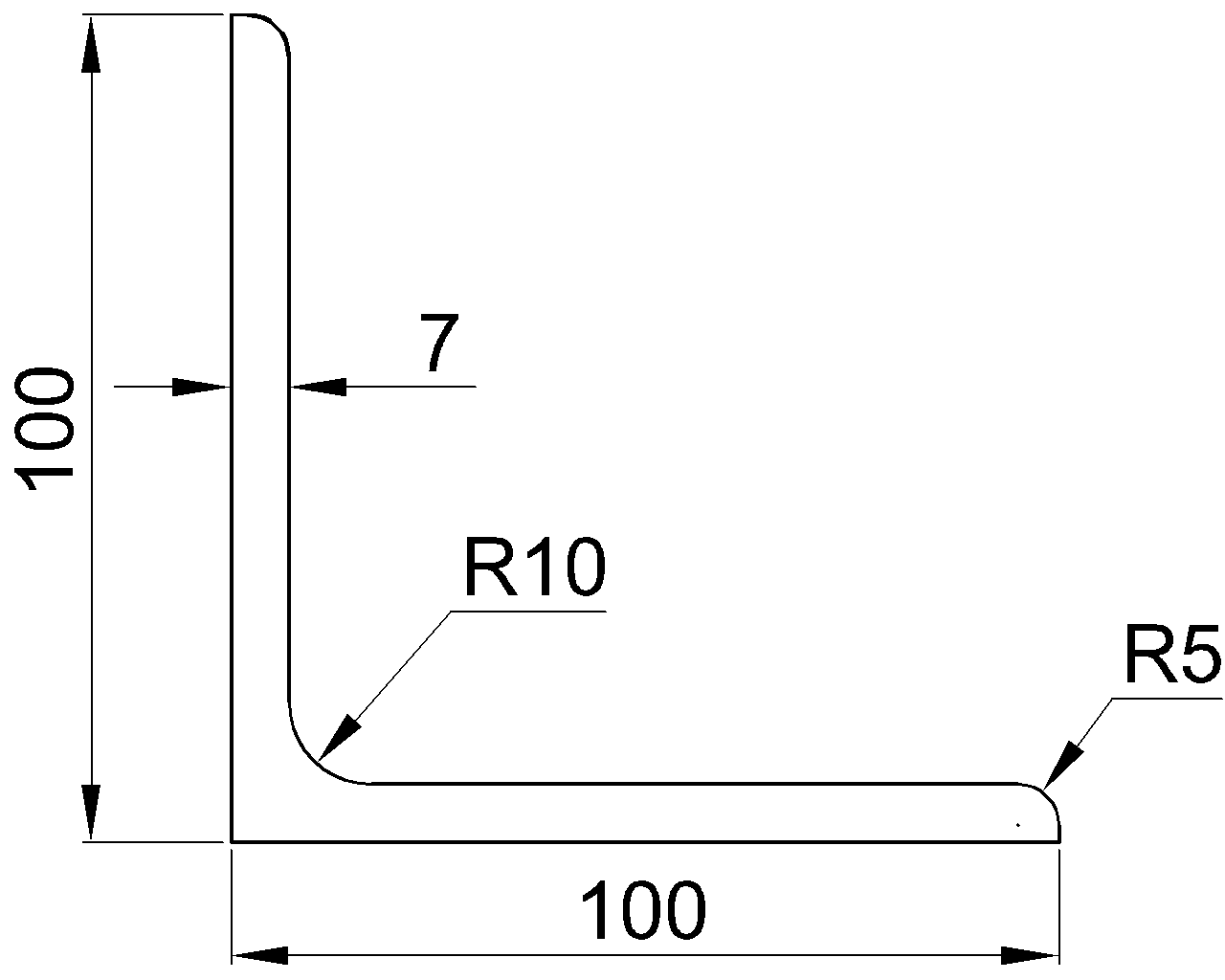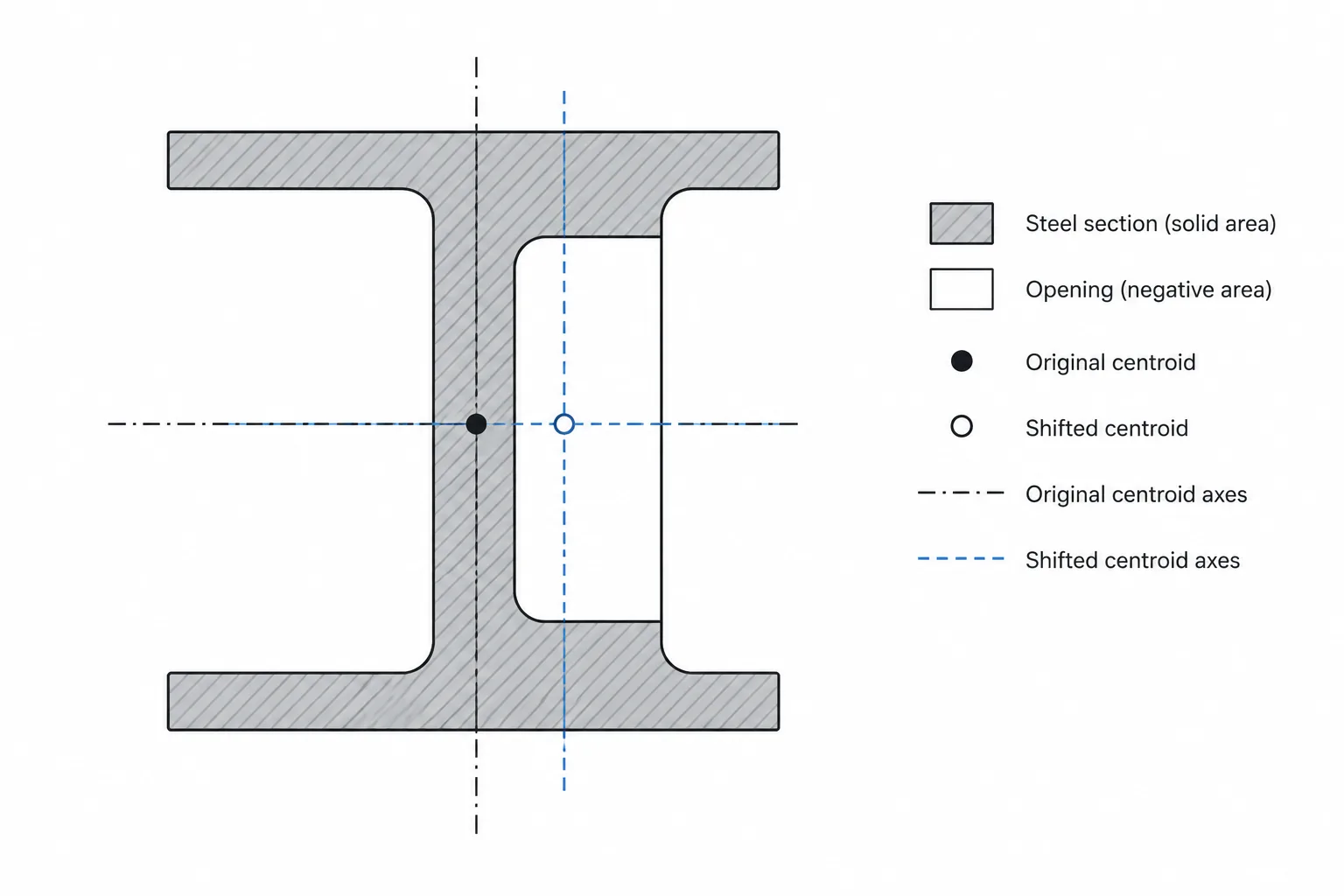
Published steel shape tables describe the properties of an unmodified cross-section. Once material is removed for bolt holes, access openings, slots, notches, or other cuts, those tabulated properties may no longer represent the section being examined.
The basic calculation idea is straightforward: treat solid steel as positive area and each opening as negative area. The practical difficulty is deciding which cross-section to analyze, representing the removed material correctly, and recalculating all properties about the resulting centroid. This is particularly important when an opening is eccentric, because the centroid and neutral axis can shift even when the removed area appears small relative to the whole member.
Start by Defining the Cross-Section
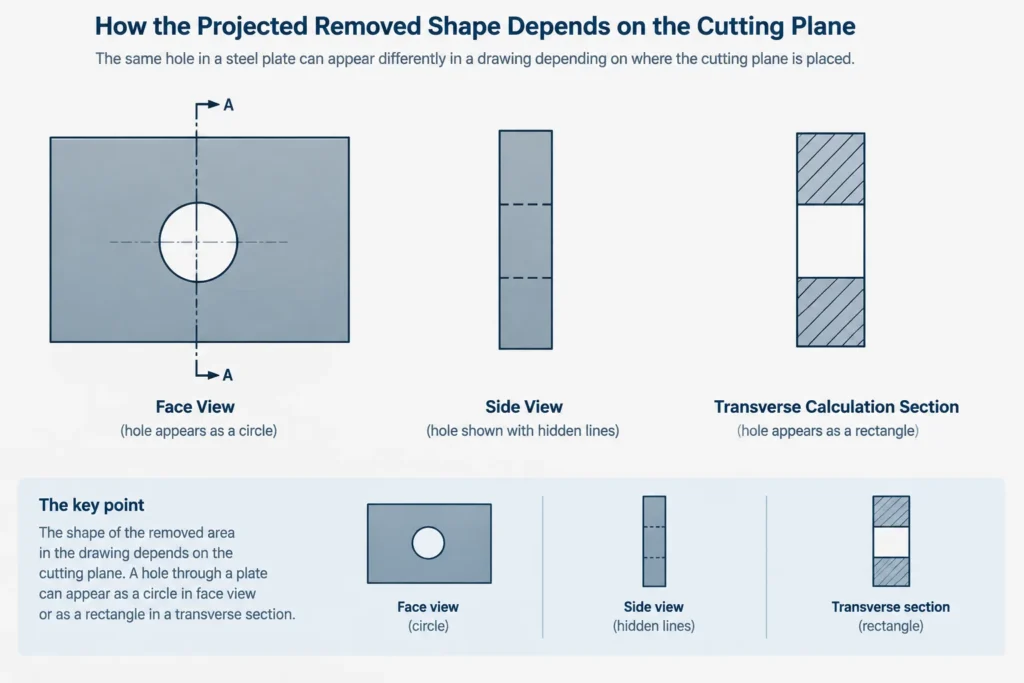
A hole is a three-dimensional feature, but section properties are calculated from a two-dimensional cut. The first step is therefore to identify the plane being evaluated.
- Transverse member section: A cut perpendicular to the member axis, commonly used for axial, bending, and stability properties.
- Plate net section: A cut through a bolt line or other potential critical path in a plate, angle leg, tee, or gusset.
- Beam web section at an opening: A transverse cut through a web penetration, where part of the web depth is absent.
- Local connection section: A cut selected to examine the remaining material near holes, notches, copes, or connected elements.
The visible outline of a hole in a drawing is not automatically the shape to subtract. For example, a circular bolt hole shown on the face of a plate may appear as a removed strip when viewed in the transverse section used for a net-area calculation. A web opening shown in beam elevation produces different remaining sections depending on where the transverse cutting plane passes through it.
Which Properties Change?
| Property | Effect of an opening | Key caution |
|---|---|---|
| Area, A | Decreases by the area removed in the selected section | Use the opening projected into the actual calculation plane |
| Centroid | May shift away from an eccentric opening | Do not continue using the original shape centroid automatically |
| Moment of inertia, I | Decreases according to both removed area and its distance from the new axis | Material removed far from an axis can have a disproportionate effect |
| Section modulus, S | Changes because both I and the extreme-fiber distance can change | Positive-side and negative-side values may no longer be equal |
| Radius of gyration, r | Changes with the revised area and moment of inertia | Recalculate from compatible net-section properties |
| Torsional properties | Can change substantially, especially for open or interrupted walls | Simple planar subtraction may not provide a valid torsional property |
The Negative-Area Method
For geometric calculations, an opening can be assigned a negative sign. Solid components receive positive areas, while holes and cutouts receive negative areas.
The remaining area can be written conceptually as:
Aremaining = Σ(positive areas) − Σ(opening areas)
The centroid coordinates are calculated using signed first moments:
x̄ = Σ(sA x) / Σ(sA)
ȳ = Σ(sA y) / Σ(sA)
Here, s is positive for steel and negative for removed material. The coordinates of every component and opening must be measured from the same datum.
After finding the revised centroid, calculate moment of inertia with the parallel-axis relationship:
Ix = Σ s[Ix,c + A(Δy)2]
A corresponding expression is used for the other axis. An opening therefore removes its own centroidal inertia and the parallel-axis contribution associated with its location. This explains why an opening near an extreme fiber can affect bending properties more than the same opening placed close to the neutral axis.
Why the Original Centroid May Be Wrong
A centered opening in a doubly symmetric section may preserve the original centroid and symmetry. An eccentric hole or notch generally does not. The remaining section may become singly symmetric or fully unsymmetric.
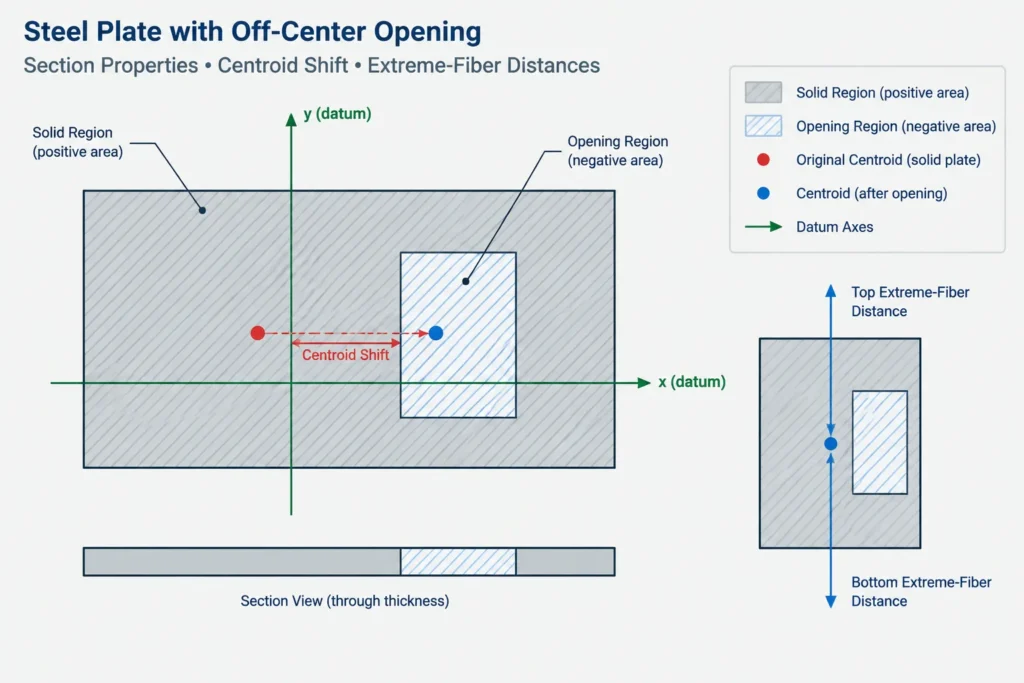
That change has several consequences:
- The original shape-table axes may no longer pass through the centroid.
- Distances to opposite extreme fibers can differ.
- Section modulus may need to be reported separately for each side.
- Product of inertia may become nonzero about the chosen drawing axes.
- The principal-axis orientation may rotate for a substantially unsymmetric remaining section.
Subtracting an opening’s inertia from the published value while retaining the published centroid is only valid in limited symmetric cases. It should not be used as a general shortcut.
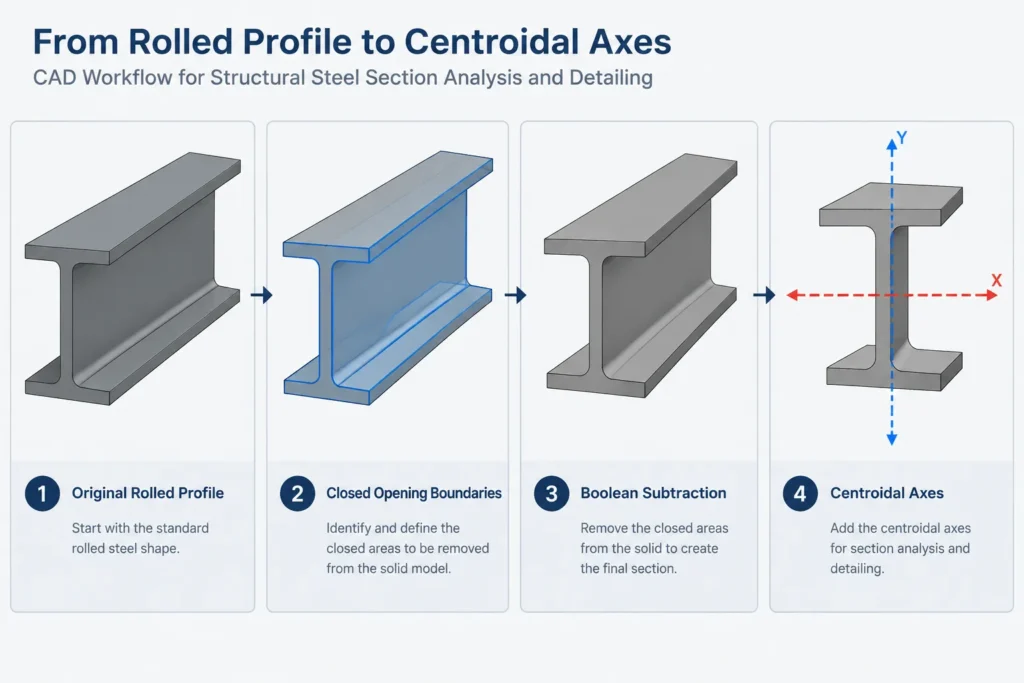
A Practical CAD Calculation Workflow
1. Preserve the source geometry
Keep an unchanged copy of the original shape profile, plate outline, or member section. Record the shape-data source and units. If the profile came from a simplified CAD block, determine whether fillets, corner radii, and wall geometry are represented accurately enough for the intended calculation.
2. Draw the relevant section, not merely the visible view
Project the opening into the selected cutting plane. Confirm whether the calculation concerns a transverse member section, a plate net-section path, or a section through a larger web opening. For slotted or skewed features, verify the true intersection rather than relying on a convenient orthographic appearance.
3. Create closed boundaries
Build clean, closed loops for the steel boundary and every opening. Remove duplicate segments, tiny gaps, overlapping polylines, and unintended self-intersections. These defects can cause region tools to fail or can produce misleading areas.
4. Use consistent datums and axes
Place the geometry relative to a documented origin, such as a web centerline, plate edge, member work line, or original shape centroid. Do not move individual openings to convenient local origins unless their coordinates are transformed back consistently.
5. Subtract openings and inspect the result
Create a resulting region using Boolean subtraction, or calculate with separate signed components. Confirm that the number and location of openings match the drawing. A visual check is essential because a successful CAD command does not prove that the intended geometry was selected.
6. Extract properties and perform independent checks
Record area, centroid, moments of inertia, and any available product-of-inertia output. Compare the remaining area with a simple hand subtraction. Check whether the reported centroid moves in the physically expected direction—normally away from an eccentric opening.
7. Calculate derived values from compatible data
If section modulus is needed, use the revised inertia and distances from the revised neutral axis to the governing extreme fibers. If radius of gyration is needed, use the revised inertia and revised area. Do not combine a net inertia with a gross area or an original extreme-fiber distance.
Common Modeling Mistakes
- Subtracting the plan-view circle: The circular face of a drilled hole may not be the removed shape in the cross-section being analyzed.
- Ignoring stagger: A critical net-section path through staggered holes may not be a straight transverse line.
- Using nominal outlines without checking radii: Rolled-shape fillets and HSS corners can influence local geometry and CAD-derived properties.
- Keeping the gross centroid: This gives incorrect inertias for many eccentric openings.
- Reporting one section modulus for an unsymmetric section: Opposite extreme-fiber distances may produce different values.
- Treating every opening independently: Closely spaced or intersecting openings must be represented by their combined removed boundary without double subtraction.
- Assuming planar properties describe torsion: Openings that interrupt a wall or closed path can require a more specialized torsional analysis.
Local Openings Versus Global Member Properties
A member with one localized opening does not necessarily have one uniform set of reduced properties over its full length. The gross shape properties may apply away from the opening, while reduced properties apply within the affected region. Transition zones can also matter where the opening begins, ends, or changes shape.
This distinction is important in analysis models. Assigning reduced properties to an entire member may overstate the opening’s global influence, while using only gross properties may miss local deformation and stress effects. The appropriate representation depends on the purpose and required level of analysis.
Keep Geometric Calculation Separate from Design Verification
CAD-derived section properties are geometric results, not proof of connection strength or member adequacy. Design checks may require specific definitions of hole size, effective width, critical path, local buckling behavior, stress concentration, reinforcement, and limit states. Those requirements must come from the governing project criteria and be reviewed by the responsible engineer.
The most reliable workflow is to document the cutting plane, opening geometry, datums, units, assumptions, and calculation method. That record makes the result easier to verify when a hole pattern, member size, or connection detail changes.